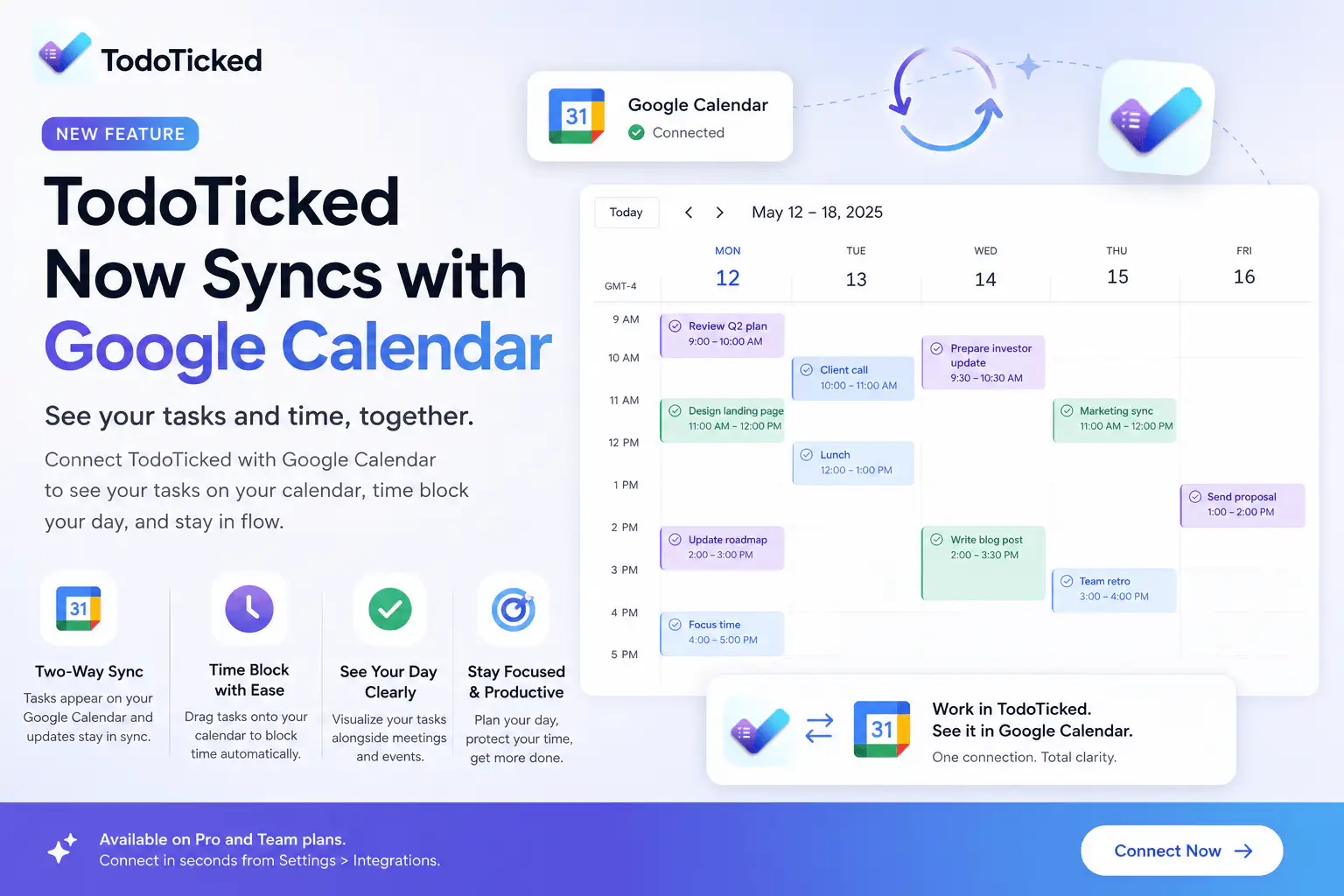
In today's fast-paced work environment, balancing tasks and commitments can be a challenge. The new integration between TodoTicked and Google Calendar offers a practical solution for professionals looking to streamline their workflow. This article will explore how Pro and Team users can effectively connect their Google Calendar, utilize read-only overlays, and export tasks to optimize their daily planning.
Why Integrate TodoTicked with Google Calendar?
As a busy professional, managing tasks and appointments can lead to scheduling conflicts, missed deadlines, and general disorganization. Integrating TodoTicked with Google Calendar allows you to combine your task management with your calendar commitments in one cohesive view. Here are some key benefits:
Avoid Scheduling Conflicts: By displaying your Google Calendar alongside your tasks, you can easily see when you have free time to take on new tasks or meetings.
Combine Commitments with Planned Work: Whether you are managing personal tasks or team projects, having everything in one place helps you prioritize effectively.
Control Task Visibility: You can choose which tasks to export to Google Calendar, maintaining control over what is visible on your calendar.
Setting Up the Integration
Connecting TodoTicked with Google Calendar is straightforward. Here’s a step-by-step walkthrough:
1. Access Integrations Settings
To get started, log in to your TodoTicked account. Navigate to the Integrations settings, where you will find the option to connect your Google account.
2. Connect Your Google Account
Click on the option to connect your Google account. You will be prompted to authorize TodoTicked to access your calendar. This is necessary for the integration to function correctly.
3. Select Your Google Calendars
Once connected, you can choose which Google calendars you want to display as read-only overlays in TodoTicked. This allows you to see your existing appointments without making any changes to your Google Calendar.
4. Configure Task Export Settings
You have the option to export starred tasks and tasks from selected personal projects to a dedicated Google “TodoTicked” calendar. You can also choose whether to export task notes, giving you flexibility in what information you want to include.
5. Review and Save
After configuring your settings, save your changes. You are now ready to begin managing your tasks alongside your calendar!
Using the Integration Effectively
Now that you’ve set up the integration, let’s look at some realistic use cases for how you can utilize this feature effectively:
1. Daily Planning
Every morning, review your TodoTicked tasks and starred items, and check your Google Calendar for any appointments. This will help you allocate your time efficiently, ensuring you complete tasks without conflicting with meetings.
2. Task Management During Meetings
When scheduling meetings, you can open TodoTicked to see your tasks alongside your calendar, allowing you to understand your workload and prioritize effectively. If a task is urgent, you can easily adjust your meeting time to accommodate it without leaving TodoTicked.
3. Personal Task Visibility
For those juggling personal and professional commitments, the integration allows you to export specific tasks to Google Calendar, ensuring you never miss a family event or personal obligation while managing work tasks.
Privacy and Permission Details
When connecting TodoTicked to Google Calendar, it’s essential to understand how your data is managed:
TodoTicked remains the source of truth for your tasks. Any edits or deletions made in Google Calendar will not affect tasks in TodoTicked.
You have complete control over which tasks you export, allowing you to maintain privacy for sensitive projects.
The integration operates under strict permission settings, ensuring your information remains secure.
Limitations to Consider
While the Google Calendar integration offers significant benefits, it’s essential to be aware of some limitations:
Currently, you can only connect one Google account; multiple accounts are not supported.
This integration does not allow for team or shared-task exports.
You cannot edit TodoTicked tasks directly from Google Calendar.
Existing calendars cannot be used as write targets, meaning Google Calendar edits won’t sync back to TodoTicked.
There is no support for iOS calendar integration at this time.
FAQ
Q: How do I remove tasks from Google Calendar?
A: You can use the “Remove from Google Calendar” action available in TodoTicked to stop exporting specific tasks.
Q: Can I see my Google Calendar offline?
A: Yes, your selected Google Calendar will be cached for offline visibility, allowing you to view your schedule without an internet connection.
Q: What timezone settings are supported?
A: The integration accurately handles time zones and all-day events, ensuring your tasks are exported correctly to Google Calendar.
Q: Will I receive notifications for Google Calendar events?
A: While TodoTicked displays your Google Calendar events, notifications must be managed within Google Calendar itself.
A Practical TodoTicked Workflow
To maximize the benefits of your Google Calendar integration, consider the following workflow:
Start Your Day with a Review: Begin your day by checking TodoTicked to see your tasks and Google Calendar events.
Prioritize Tasks: Use the Pomodoro timer feature in TodoTicked to allocate focused time slots for your tasks while keeping an eye on your Google Calendar.
Export Tasks: Star important tasks you wish to appear in Google Calendar for visibility. If needed, add relevant notes for context.
Adjust as Necessary: If new tasks arise during the day, review your Google Calendar to see if adjustments are required to your schedule.
End-of-Day Reflection: At the end of your day, revisit TodoTicked to review your completed tasks and plan for the following day.
Conclusion
The integration of TodoTicked with Google Calendar opens up new possibilities for busy professionals looking to streamline their task and calendar management. By connecting your accounts, you can efficiently manage your commitments, avoid scheduling conflicts, and maintain control over task visibility. Eligible users can connect their Google Calendar from TodoTicked’s Integrations settings today and start experiencing the benefits.
Take control of your day and ensure you never miss a beat. Connect your Google Calendar now and experience seamless task management today!